Stage 01 · Write · Researched comparison
Best Terminal Git Clients in 2026
lazygit is the first pick for most developers who want a full terminal UI for staging, committing, rebasing and resolving conflicts without memorizing every command. It suits people who live in a shell and want fast keyboard-driven Git. tig is a strong alternative for read-heavy history browsing and blame work, and gitui is a good fit for users who want a fast Rust binary with a similar panel layout.

By Shihab Mia
Published 22 Nov 2026 · 6 tools compared
We run no ads and no affiliate links at launch. The order of a list follows our published method. See how we score.
Prices are the starting prices vendors list publicly. Plans change, so confirm the current price on the vendor page before you buy.
Key takeaways
- lazygit, tig, gitui, forgit, Magit and fugitive are all free or open source, so cost is not the deciding factor.
- tig leans toward browsing history, diffs and blame, while lazygit and gitui focus on staging, committing and rebasing.
- Magit and fugitive are not standalone apps; they run inside Emacs and Vim respectively, so editor choice drives the pick.
- Terminal clients run locally against your repository, so your code and credentials stay on your machine rather than a third-party web page.
Who each pick is for
- Developers who want a full keyboard-driven Git UI in the terminallazygit
- Browsing history, diffs and blame in a terminal pagertig
- Users who want a fast terminal Git UI written in Rustgitui
- Shell users who want fuzzy-search helpers for Git commandsforgit
- Emacs users who want deep Git integration inside the editorMagit
- Vim and Neovim users who want Git commands inside the editorfugitive
Comparison
| Tool | Best for | Standout feature | Listed starting price | Free plan or trial |
|---|---|---|---|---|
| 1lazygit | Developers who want a full keyboard-driven Git UI in the terminal | Covers staging, committing, branching, rebasing and conflict resolution in one screen | Free (open source) | Free plan |
| 2tig | Browsing history, diffs and blame in a terminal pager | Fast read-only browsing of commits, trees, blame and diffs | Free (open source) | Free plan |
| 3gitui | Users who want a fast terminal Git UI written in Rust | Fast startup and low memory use | Free (open source) | Free plan |
| 4forgit | Shell users who want fuzzy-search helpers for Git commands | Adds fuzzy selection to git add, log, diff, stash and checkout | Free (open source) | Free plan |
| 5Magit | Emacs users who want deep Git integration inside the editor | Very complete Git workflow inside Emacs, from staging to rebasing | Free (open source) | Free plan |
| 6fugitive | Vim and Neovim users who want Git commands inside the editor | Deep Git integration in Vim and Neovim, including status, blame and diffs | Free (open source) | Free plan |
How we picked
We picked tools that run in a terminal and work with standard Git repositories, then compared them on fit for common Git tasks, supported platforms, licence and price, whether they keep data local, and their main limits. Sources are vendor pages, project documentation and public repositories. Prices and features change, so confirm details on the vendor or project site before you commit.
The tools, one by one
lazygit
Best for developers who want a full keyboard-driven Git UI in the terminal
What it is and where it fits
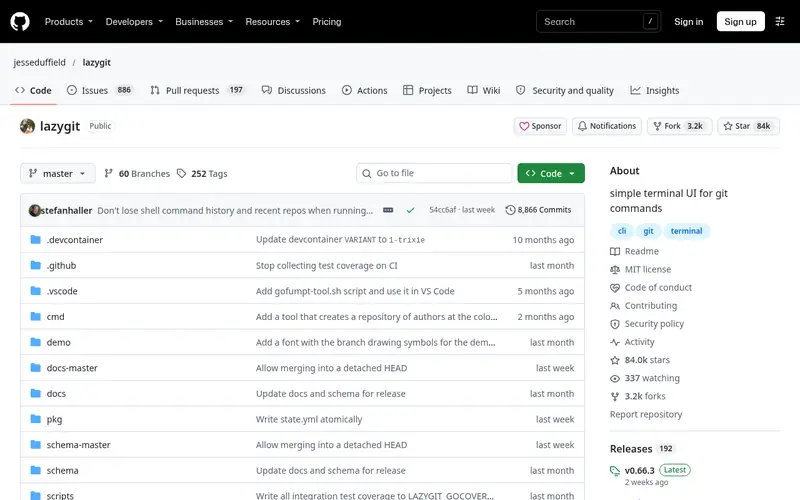
lazygit is a terminal UI written in Go. It presents panels for status, files, branches, commits and stashes, and lets you stage individual lines, amend commits, interactive-rebase and resolve merge conflicts with keyboard shortcuts. It calls the installed Git binary, so behavior matches your normal Git configuration.
It runs on macOS, Linux and Windows, and installs through package managers such as Homebrew, Scoop and most Linux distributions. The project is open source under the MIT license, with no paid tier. The main limit is the learning curve: the shortcut set is large, and the built-in help panel is the fastest way to learn it. Developers who prefer typing raw Git commands may find it adds a layer they do not need.
Standout: Covers staging, committing, branching, rebasing and conflict resolution in one screen
Free (open source), as listed by the vendor (lazygit website). Confirm the current plan price before you buy.
Free plan. Plans change, so confirm on the vendor's pricing page before you buy.
Benefits
- Covers staging, committing, branching, rebasing and conflict resolution in one screen
- works on macOS, Linux and Windows
Drawbacks
- Dense key map takes time to learn
- some advanced Git operations still need the command line
Skip it if this limit matters to you: dense key map takes time to learn.
Verdict. A sensible pick for developers who want a full keyboard-driven Git UI in the terminal.
tig
Best for browsing history, diffs and blame in a terminal pager
What it is and where it fits
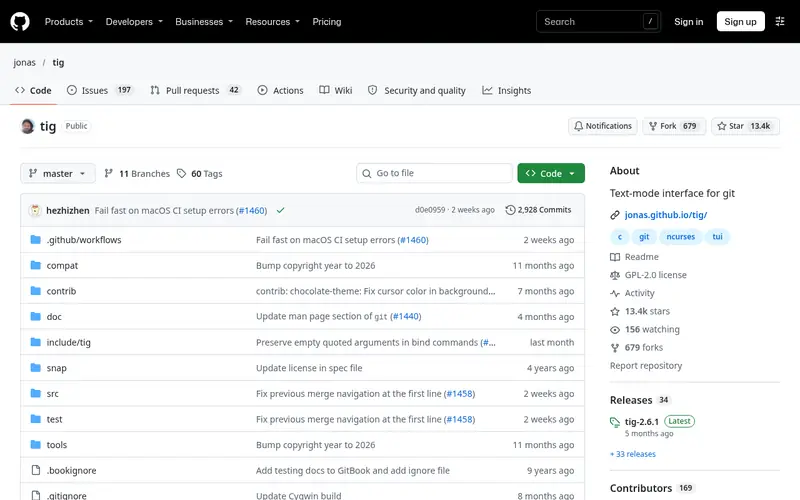
tig is a text-mode interface for Git, built mainly as a repository browser. It shows commit logs, diffs, blame views and tree listings, and you can move through history quickly with single-key commands. It also supports some write actions, such as staging and committing, but its strength is inspection rather than a complete workflow.
It runs on macOS, Linux and other Unix-like systems, and is available through common package managers. The project is open source. Because it is a terminal program with no server component, it works well on remote hosts over SSH. The trade-off is that staging and rebasing are less central than in lazygit, so teams that want one tool for all write operations may pair it with another client.
Standout: Fast read-only browsing of commits, trees, blame and diffs
Free (open source), as listed by the vendor (tig website). Confirm the current plan price before you buy.
Free plan. Plans change, so confirm on the vendor's pricing page before you buy.
Benefits
- Fast read-only browsing of commits, trees, blame and diffs
- works well over SSH on remote machines
Drawbacks
- Less focused on staging and commit workflows than full UIs
- interface is older and less visual
Skip it if this limit matters to you: less focused on staging and commit workflows than full UIs.
Verdict. A sensible pick for browsing history, diffs and blame in a terminal pager.
gitui
Best for users who want a fast terminal Git UI written in Rust
What it is and where it fits
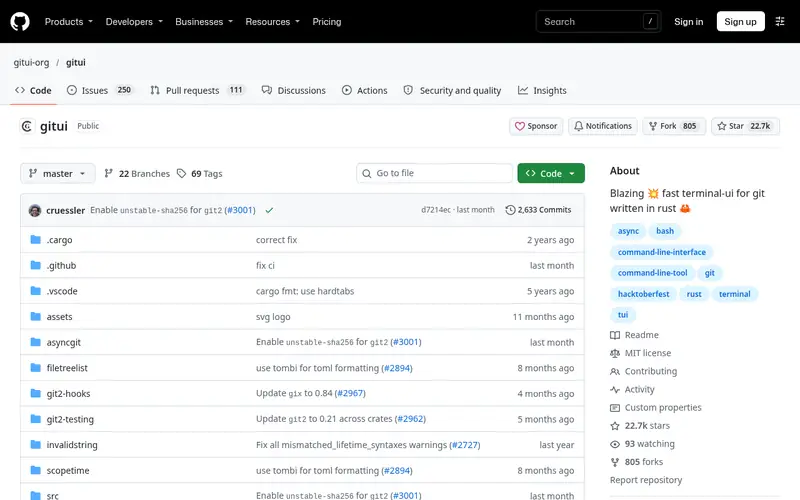
gitui is a terminal Git client written in Rust. It provides a panel layout for status, log, branches, stashing and file inspection, with keyboard shortcuts for common actions. The project emphasizes performance and a small binary, which helps on older hardware and remote sessions.
It runs on macOS, Linux and Windows, and is distributed through package managers and release binaries. It is open source. Feature coverage has grown over time, but some advanced Git operations are less complete than in mature clients, so check the project's current feature list if you rely on complex rebase or submodule workflows. It suits developers who want a fast, simple UI and do not need every Git feature exposed.
Standout: Fast startup and low memory use
Free (open source), as listed by the vendor (gitui website). Confirm the current plan price before you buy.
Free plan. Plans change, so confirm on the vendor's pricing page before you buy.
Benefits
- Fast startup and low memory use
- keyboard-driven panels for status, log, branches and stashing
Drawbacks
- Some advanced operations are still in progress
- fewer features than older full UIs
Skip it if this limit matters to you: some advanced operations are still in progress.
Verdict. A sensible pick for users who want a fast terminal Git UI written in Rust.
forgit
Best for shell users who want fuzzy-search helpers for Git commands
What it is and where it fits
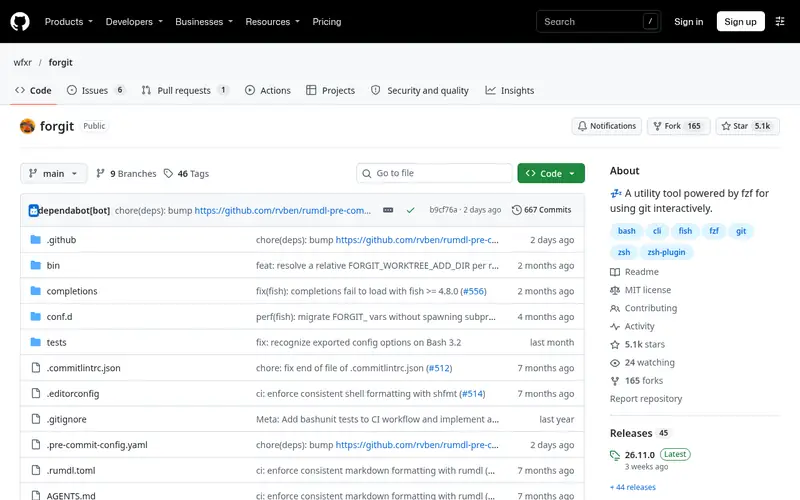
forgit is a set of shell functions that wrap common Git commands with fuzzy search through fzf. Instead of typing full file paths or commit hashes, you pick from an interactive list. It covers add, log, diff, stash, checkout, reset and ignore operations.
It works with bash, zsh and fish on macOS and Linux, and depends on fzf being installed. It is open source. Because it is a set of shell functions rather than an application, it fits developers who already like their terminal setup and want small improvements rather than a new interface. The limit is that it does not provide a full-screen UI, and behavior depends on your shell configuration.
Standout: Adds fuzzy selection to git add, log, diff, stash and checkout
Free (open source), as listed by the vendor (forgit website). Confirm the current plan price before you buy.
Free plan. Plans change, so confirm on the vendor's pricing page before you buy.
Benefits
- Adds fuzzy selection to git add, log, diff, stash and checkout
- works inside existing shell workflows
Drawbacks
- Requires fzf and a supported shell
- it is a helper layer, not a standalone UI
Skip it if this limit matters to you: requires fzf and a supported shell.
Verdict. A sensible pick for shell users who want fuzzy-search helpers for Git commands.
Magit
Best for emacs users who want deep Git integration inside the editor
What it is and where it fits
Magit is a Git interface for Emacs. It provides status buffers, staging, committing, branching, rebasing, log inspection and conflict resolution, all driven by Emacs keybindings. It is one of the most complete Git interfaces available in any editor and has a long track record.
It runs wherever Emacs runs, including macOS, Linux and Windows, and is open source. The main constraint is obvious: it only makes sense if you already use Emacs or are willing to learn it. Developers outside Emacs should skip it. For Emacs users, it removes most reasons to leave the editor for Git work.
Standout: Very complete Git workflow inside Emacs, from staging to rebasing
Free (open source), as listed by the vendor (Magit website). Confirm the current plan price before you buy.
Free plan. Plans change, so confirm on the vendor's pricing page before you buy.
Benefits
- Very complete Git workflow inside Emacs, from staging to rebasing
- extensive documentation and long project history
Drawbacks
- Requires Emacs
- not useful outside that editor
Skip it if this limit matters to you: requires Emacs.
Verdict. A sensible pick for emacs users who want deep Git integration inside the editor.
fugitive
Best for vim and Neovim users who want Git commands inside the editor
What it is and where it fits
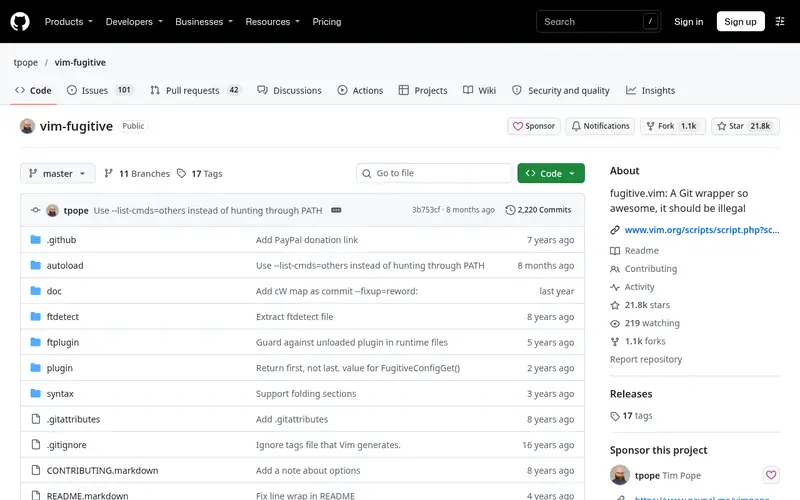
fugitive is a Git plugin for Vim and Neovim. It adds commands such as :Git for running Git operations, a status buffer for staging and committing, blame views, and diff navigation. It integrates with the editor's buffer and window model rather than opening a separate terminal app.
It runs anywhere Vim or Neovim runs and is open source. The plugin is mature and widely used, with documentation in the repository. The limit is editor lock-in: it is only useful inside Vim or Neovim, and new users need time to learn the commands. Developers who already work in Vim often prefer it to a separate terminal UI because it keeps Git next to the code.
Standout: Deep Git integration in Vim and Neovim, including status, blame and diffs
Free (open source), as listed by the vendor (fugitive website). Confirm the current plan price before you buy.
Free plan. Plans change, so confirm on the vendor's pricing page before you buy.
Benefits
- Deep Git integration in Vim and Neovim, including status, blame and diffs
- widely used and actively maintained
Drawbacks
- Requires Vim or Neovim
- keybindings and commands take practice
Skip it if this limit matters to you: requires Vim or Neovim.
Verdict. A sensible pick for vim and Neovim users who want Git commands inside the editor.
Who should use what
If you want one full-screen UI for staging, committing and rebasing, start with lazygit. If you mostly read history, blame and diffs, tig is lighter and faster to open. If you work inside Emacs or Vim all day, Magit or fugitive keeps Git next to your code. If you want small shell improvements without a new interface, forgit adds fuzzy selection to commands you already use.
Questions to settle before you buy
What to check before you buy
- Confirm the client supports your operating system and installs through your package manager or a signed release.
- Check that it calls your installed Git binary so your existing config, hooks and aliases still apply.
- Review which operations it covers, especially interactive rebase, conflict resolution and submodules.
- Make sure it runs locally against your repository and does not send code to a third-party service.
- Read the current feature list and issue tracker for gaps that affect your workflow.
FAQ
Do terminal Git clients replace the Git command line?
No. Most terminal clients call the installed Git binary and complement it rather than replace it. You will still use Git commands for scripting, hooks and unusual operations. Clients like lazygit and gitui speed up common tasks, while tig focuses on inspection.
Are these tools free?
All six listed here are free or open source. lazygit, tig, gitui, forgit, Magit and fugitive do not require a paid licence. If a project adds paid support or hosting later, check its site for current terms.
Which client works best over SSH?
tig and lazygit both work well in a terminal session on a remote host. tig is especially light for browsing history and blame. lazygit gives you a fuller UI if the remote machine has it installed. Avoid browser-based Git tools for private code.
Can I use these on Windows?
lazygit and gitui provide Windows builds and install through package managers such as Scoop. tig and forgit are more common on macOS and Linux. Magit and fugitive work wherever Emacs or Vim runs, including Windows.
Do I need to worry about privacy with terminal clients?
Terminal clients run locally and talk to your Git remote, so your code is not pasted into a third-party web page. The privacy risk is the same as using Git itself: keep credentials out of shell history and review remote URLs before pushing.
Sources we checked
Method: how we score · editorial policy.
Change log. First published 22 Nov 2026.